Windows Encryption Basics
Understanding encryption fundamentals and when you need it on Windows
Who This Guide Is For
This guide is for Windows users who want to understand what encryption actually does, which threats it addresses, and when it makes sense to encrypt your data. You don't need technical expertise—just a willingness to think about your security goals and whether encryption fits your threat model.
If you've heard terms like "full-disk encryption," "BitLocker," or "AES-256" but aren't sure what they mean or whether you should care, this guide will give you the foundation you need.
What Is Encryption?
Encryption transforms readable data into scrambled gibberish that can only be unscrambled with the correct key or password. On Windows, encryption typically protects data at rest— files stored on your hard drive, SSD, or USB drive—so that if someone gains physical access to your storage device, they cannot read your data without your encryption password.
There are two main categories of encryption on Windows:
- Full-disk encryption (FDE): Encrypts your entire system drive or partition. Windows BitLocker is the most common example. When your computer is off or locked, all data on the encrypted drive is protected.
- File or folder encryption: Encrypts specific files, folders, or virtual containers. Tools like VeraCrypt containers or CryptoExpert virtual drives fall into this category. You mount and unmount these encrypted volumes as needed.
Both approaches use strong cryptographic algorithms (typically AES-256) to protect your data. The main difference is scope: full-disk encryption protects everything automatically, while file-level encryption requires you to decide what to protect.
When Do You Need Encryption?
Encryption addresses specific threats. Understanding these threats helps you decide whether encryption is worth the effort for your situation.
Threat 1: Laptop or Device Theft
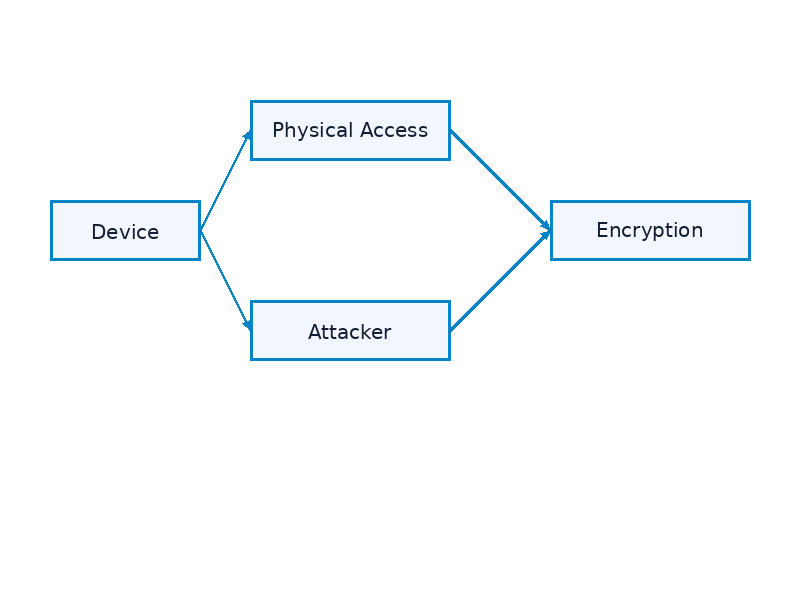
If someone steals your laptop, they can remove the hard drive and read your files on another computer— unless the drive is encrypted. Full-disk encryption is the standard defense against this threat. If your laptop contains work documents, financial records, or personal photos you'd rather not share with a thief, encryption makes sense.
Threat 2: Lost USB Drives
USB flash drives are easy to lose. If you store sensitive files on removable media, encryption prevents anyone who finds the drive from accessing your data. BitLocker To Go (for USB drives) and VeraCrypt are common solutions.
Threat 3: Unauthorized Physical Access
If someone can physically access your computer while you're away—whether a roommate, hotel cleaning staff, or border agents—encryption protects your data when the system is powered off. However, encryption does not protect you while the system is running and unlocked.
What Encryption Does NOT Protect Against
Encryption is not a silver bullet. It does not protect against:
- Malware or keyloggers installed on your system (they can steal your data while it's decrypted)
- Phishing attacks or social engineering
- Network surveillance (use HTTPS and VPNs for that)
- Weak passwords (if your encryption password is "password123," encryption is useless)
- Compelled disclosure (if someone forces you to provide your password, encryption won't help)
Reality Check
Common Mistakes in the Real World
Mistake 1: Using Weak Passwords
AES-256 encryption is unbreakable with current technology, but a weak password undermines it completely. "MyDog2024" is trivially crackable. Use a long passphrase (at least 12 characters, ideally 16+) or a password manager to generate strong passwords.
Mistake 2: Leaving the System Running and Unlocked
Encryption only protects you when the drive is locked. If you step away from your laptop without locking Windows, encryption offers no protection. Always lock your screen (Win + L) or shut down when leaving your device unattended.
Mistake 3: No Backup Plan
If you forget your encryption password or your encrypted drive fails, your data is gone. Encryption makes data recovery impossible without the key. Always maintain backups of encrypted data (also encrypted, ideally stored separately).
Mistake 4: Encrypting Without Understanding Why
Some people enable encryption because "everyone says you should." If your threat model doesn't include physical device theft, encryption adds complexity without benefit. Be intentional: know what threats you're addressing and whether encryption is the right tool.
Quick Start Checklist
- 1. Identify your threat model: Do you worry about device theft or loss?
- 2. Choose the right tool: BitLocker for simplicity, VeraCrypt for cross-platform needs
- 3. Generate a strong passphrase (16+ characters, random words work well)
- 4. Store your recovery key somewhere safe (not on the encrypted device)
- 5. Test recovery before relying on encryption (make sure you can decrypt)
- 6. Maintain regular backups (also encrypted)
Which Encryption Tool Should You Use?
For most Windows users, the choice comes down to BitLocker or VeraCrypt:
- BitLocker: Built into Windows Pro and Enterprise. Simple, well-integrated, and trusted for typical threat models (device theft). Requires a TPM chip on most systems.
- VeraCrypt: Free, open-source, cross-platform. Offers more flexibility and doesn't require TPM. Good choice if you need encrypted containers or use multiple operating systems.
For a detailed comparison, see our guide: BitLocker vs VeraCrypt.
Frequently Asked Questions
Will encryption slow down my computer?
Modern CPUs have hardware acceleration for AES encryption (AES-NI), so performance impact is minimal on recent systems. You might notice a small difference during heavy disk I/O, but for typical use, encryption is imperceptible.
Can I encrypt an external hard drive?
Yes. BitLocker To Go works for USB drives on Windows. VeraCrypt also supports encrypting entire external drives or creating encrypted containers on them. Just remember that the drive must be unlocked to access files.
What happens if I forget my encryption password?
Your data is permanently inaccessible. This is by design—encryption that can be bypassed isn't encryption. Always store a recovery key in a safe place (e.g., password manager, printed and locked away).
Is Windows EFS the same as BitLocker?
No. EFS (Encrypting File System) encrypts individual files and ties encryption to your Windows user account. BitLocker encrypts the entire drive. For most users, BitLocker is simpler and more effective.
Do I need encryption if I have a strong Windows password?
A Windows login password does not encrypt your drive. Anyone can boot from a USB stick or remove your drive and read files on another computer. Encryption prevents this.
Can law enforcement or my employer bypass encryption?
Strong encryption cannot be bypassed without the password. However, employers may have policies requiring you to provide passwords, and legal obligations vary by jurisdiction. Encryption is a technical control, not a legal shield.
Next Steps
Now that you understand encryption basics, explore these related guides:
- BitLocker vs VeraCrypt — Compare encryption tools
- Secure USB Drives — Encrypt removable storage
- Offline Vault Workflow — Air-gapped password storage