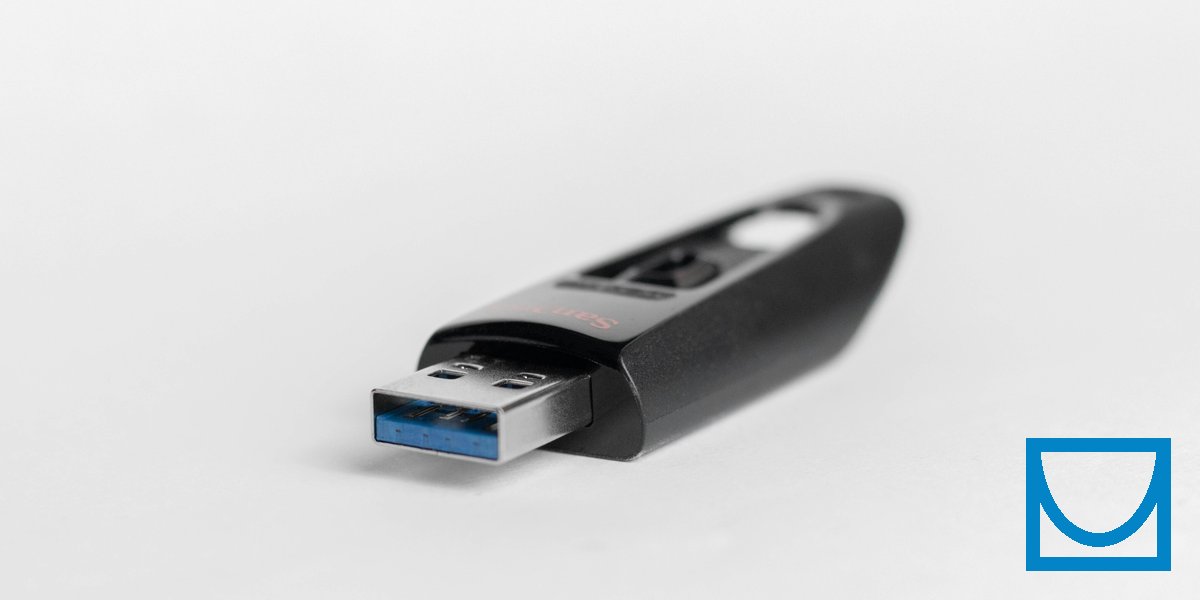
Secure USB Drives
Practical workflows for encrypting removable storage on Windows
Who This Guide Is For
If you carry sensitive files on USB flash drives or external hard drives, encryption prevents data theft if you lose the device. This guide covers three practical approaches: BitLocker To Go (Windows Pro only), VeraCrypt (full-drive encryption), and encrypted container files (portable across systems).
Why Encrypt USB Drives?
USB drives are easy to lose and even easier to steal. Unlike your laptop, which might stay in your bag, USB drives get plugged into public computers, left in meeting rooms, or dropped in parking lots. If your USB contains tax documents, client data, or personal photos, encryption ensures that finding your drive doesn't mean accessing your data.
Reality Check
Method 1: BitLocker To Go (Windows Pro)
BitLocker To Go encrypts entire USB drives. It's integrated into Windows and works seamlessly if you have Windows Pro, Enterprise, or Education.
How to Use BitLocker To Go
- Plug in your USB drive and open File Explorer
- Right-click the drive and select "Turn on BitLocker"
- Choose "Use a password to unlock the drive" and create a strong passphrase
- Save the recovery key (store it separately, not on the USB)
- Choose whether to encrypt the entire drive or just used space (encrypting just used space is faster)
- Start encryption and wait for completion
Pros and Cons
- Pros: Simple, integrated, works automatically on Windows PCs
- Cons: Requires Windows Pro; limited compatibility with Linux/macOS
Method 2: VeraCrypt Full-Drive Encryption
VeraCrypt can encrypt entire USB drives and works on Windows, Linux, and macOS. This is the best option if you need cross-platform compatibility or run Windows Home.
How to Encrypt a USB Drive with VeraCrypt
- Download VeraCrypt from the official website and verify the checksum
- Launch VeraCrypt and click "Create Volume"
- Select "Encrypt a non-system partition/drive"
- Choose "Standard VeraCrypt volume" (unless you need hidden volumes)
- Click "Select Device" and choose your USB drive
- Choose "Create encrypted volume and format it" (this erases existing data)
- Select encryption algorithm (AES is fine for most users)
- Create a strong password
- Choose a filesystem (FAT for drives under 4GB files, exFAT or NTFS for larger files)
- Start encryption and wait for completion
Pros and Cons
- Pros: Cross-platform, open source, works on Windows Home
- Cons: Requires VeraCrypt installed on every computer you use; slower setup
Method 3: Encrypted Container Files
Instead of encrypting the entire USB drive, you can create an encrypted container file (a virtual drive) that sits on a normal USB drive. This approach offers flexibility: you can have both encrypted and unencrypted files on the same USB.
How to Create a VeraCrypt Container
- Launch VeraCrypt and click "Create Volume"
- Select "Create an encrypted file container"
- Choose "Standard VeraCrypt volume"
- Click "Select File" and choose a location on your USB drive (e.g., "SecureFiles.vc")
- Select encryption algorithm and hash (defaults are fine)
- Choose container size (must be smaller than available USB space)
- Create a strong password
- Choose filesystem (FAT, exFAT, or NTFS)
- Format the container and wait for completion
Mounting the Container
- Open VeraCrypt
- Select an unused drive letter
- Click "Select File" and choose your container file
- Click "Mount" and enter your password
- The encrypted container appears as a new drive in File Explorer
- When finished, click "Dismount" to lock the container
Pros and Cons
- Pros: Mix encrypted and unencrypted files on the same USB; portable
- Cons: Requires VeraCrypt on every computer; slightly more complex
Common Mistakes in the Real World
Mistake 1: Weak Passwords
USB drives are small targets for brute-force attacks. If your password is "Summer2024", encryption is pointless. Use at least 12 characters, mix words and numbers, or generate a random passphrase with a password manager.
Mistake 2: Storing Recovery Keys on the USB
If you lose the USB, you lose the recovery key too. Store recovery keys in a password manager or print them and lock them away. Don't defeat encryption by putting the key next to the lock.
Mistake 3: Leaving Drives Mounted
Encryption only protects unmounted drives. If you walk away from your computer with the USB unlocked, anyone can access your files. Always dismount or eject encrypted drives when not in use.
Mistake 4: No Backups
USB drives fail. If your encrypted drive dies and you have no backup, your data is gone forever. Maintain backups of important encrypted data (also encrypted, stored separately).
Quick Decision Guide
- Windows Pro + Windows-only use: Use BitLocker To Go for simplicity
- Cross-platform or Windows Home: Use VeraCrypt full-drive encryption
- Mix encrypted and unencrypted files: Use VeraCrypt containers
- Shared USB with colleagues: Use containers (easier to explain than full-drive encryption)
USB Encryption Checklist
- □ Choose encryption method based on your OS and compatibility needs
- □ Back up existing data before encrypting (encryption will erase the drive)
- □ Create a strong password (16+ characters recommended)
- □ Save recovery key in a secure location (not on the USB)
- □ Test unlocking and mounting the encrypted drive
- □ Label the USB clearly (but don't write the password on it!)
- □ Remember to dismount/eject before unplugging
Frequently Asked Questions
Can I encrypt a USB drive without erasing it?
BitLocker To Go can encrypt in-place without erasing data. VeraCrypt full-drive encryption requires formatting (erasing) the drive. VeraCrypt containers can be created on existing drives without erasing other files.
Will encrypted USB drives work on any computer?
BitLocker To Go drives work on Windows PCs (with limitations on non-Pro editions). VeraCrypt requires installing VeraCrypt on each computer. Neither works natively on most public/library computers without admin rights.
How do I share an encrypted USB with someone?
Share the password separately (e.g., phone call, Signal message). Never email the password with the USB. For VeraCrypt, ensure the recipient has VeraCrypt installed.
Does encryption slow down USB drives?
Modern CPUs handle encryption efficiently, but USB 2.0 drives may feel slower. USB 3.0+ drives have negligible performance impact. The main slowdown is the unlock process, not file transfers.
Can I use the same USB for encrypted and normal files?
VeraCrypt containers allow this (encrypted container file + regular files on the same drive). BitLocker To Go and VeraCrypt full-drive encryption encrypt the entire drive.
What happens if I forget the password?
Your data is permanently inaccessible. This is by design. Store recovery keys securely, test them, and consider a password manager for complex passphrases.
Next Steps
Related guides to explore:
- BitLocker vs VeraCrypt — Detailed comparison
- How to Verify Checksums — Verify VeraCrypt downloads
- Offline Vault Workflow — Air-gapped password storage