How to Verify Checksums
Essential technique for confirming file integrity before installation
Who This Guide Is For
Checksums (hash values) let you verify that a downloaded file matches the official version published by the developer. This guide teaches you how to compute and compare checksums on Windows using built-in PowerShell commands. It's a critical skill for anyone downloading security software, encryption tools, or any executable from the internet.
What Is a Checksum?
A checksum is a unique fingerprint of a file. If even one byte changes, the checksum changes completely. Software developers publish official checksums (usually SHA-256 hashes) on their websites. After downloading a file, you compute its checksum and compare it to the published value. If they match, the file is authentic and unmodified. If they don't match, the file was tampered with or corrupted.
Why This Matters
Step-by-Step: Verify a Checksum on Windows
Step 1: Find the Official Checksum
Download the file from the official website and locate the published checksum. Look for pages titled "Checksums," "Verify Downloads," or "SHA-256 Hashes." Developers often publish checksums on their download page, in release notes, or in a separate text file.
Example: VeraCrypt publishes SHA-256 hashes on their official download page for each installer.
Step 2: Compute the Checksum Using PowerShell
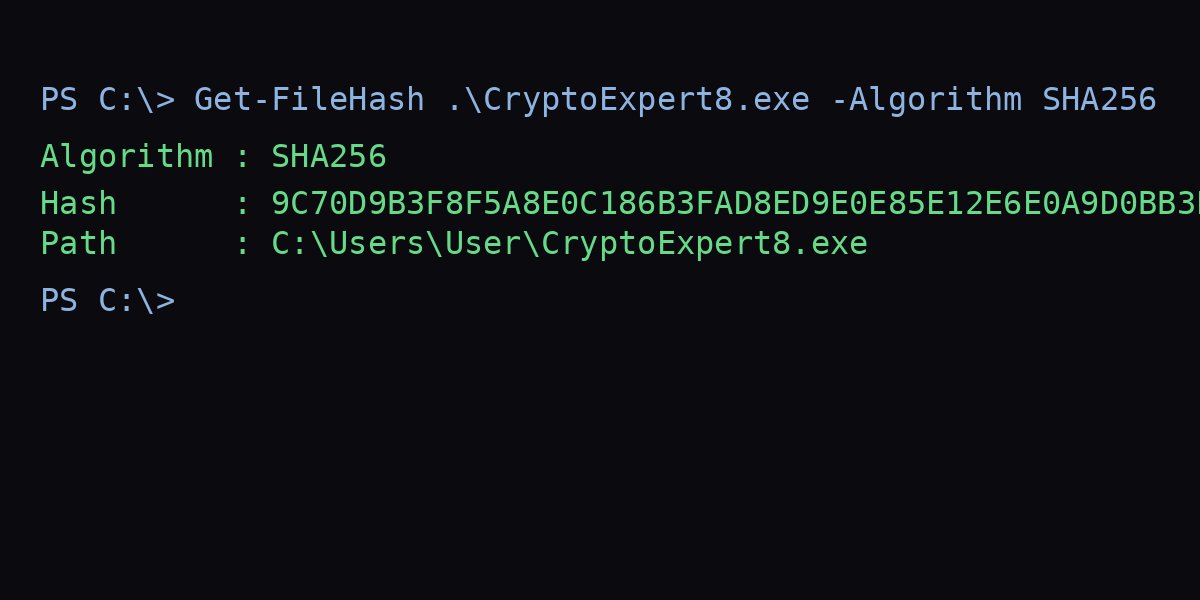
Windows includes a built-in command to compute checksums. Open PowerShell and run:
Get-FileHash -Algorithm SHA256 "C:\Users\YourName\Downloads\VeraCrypt_Setup_1.26.7.exe"Replace the file path with the actual location of your downloaded file. PowerShell will output the SHA-256 hash.
Step 3: Compare the Checksums
Copy the hash from PowerShell and compare it character-by-character to the published hash on the developer's website. They must match exactly. Even one character difference means the file is compromised or corrupted.
Pro Tip
Real-World Example: Verifying VeraCrypt
Let's say you downloaded VeraCrypt_Setup_1.26.7.exe. The official VeraCrypt website lists:
SHA-256: 6c8b1c3f8a2e9b4d7f3e1a5c8d9b2f4e6a7c8d9e1f2a3b4c5d6e7f8a9b0c1d2You compute the hash using PowerShell:
Get-FileHash -Algorithm SHA256 "C:\Users\Jamie\Downloads\VeraCrypt_Setup_1.26.7.exe"PowerShell outputs:
Algorithm       Hash
---------       ----
SHA256          6c8b1c3f8a2e9b4d7f3e1a5c8d9b2f4e6a7c8d9e1f2a3b4c5d6e7f8a9b0c1d2
The hashes match. The file is authentic. Proceed with installation.
If the hash were different (even by one character), do not install. Delete the file and re-download from the official website.
Common Mistakes in the Real World
Mistake 1: Skipping Verification
Most people skip checksum verification because it feels like extra work. For critical software (encryption tools, security utilities, system drivers), this laziness can cost you. Make verification a habit.
Mistake 2: Comparing Checksums from the Wrong Source
If you download a file from a mirror site and also get the checksum from that same mirror, you've verified nothing—a compromised mirror can publish fake checksums. Always get the checksum from the official website, even if you download from a mirror.
Mistake 3: Ignoring Mismatches
If checksums don't match, some people assume "maybe the developer updated the file." No. A mismatch means the file is wrong. Delete it and investigate. Don't rationalize your way into installing compromised software.
Mistake 4: Not Verifying HTTPS
Checksums protect against tampered downloads, but only if you get the checksum securely. Always verify that you're on the official website (check the HTTPS padlock and domain name). If an attacker controls the download page, they can publish fake checksums.
Advanced: GPG Signature Verification
Some developers publish GPG signatures instead of (or in addition to) checksums. GPG signatures provide stronger assurance because they cryptographically prove the file was signed by the developer's private key. Verifying signatures requires GPG software and importing the developer's public key. This is more complex but offers better security.
For most users, SHA-256 checksum verification is sufficient. If you're interested in GPG, consult the developer's documentation for their public key and signature verification instructions.
Verification Checklist
- □ Download the file from the official website (or a trusted mirror)
- □ Find the official checksum on the developer's website (verify HTTPS)
- □ Open PowerShell and navigate to the download folder
- □ Run:
Get-FileHash -Algorithm SHA256 "filename.exe" - □ Compare the computed hash to the published hash (must match exactly)
- □ If they match, proceed with installation
- □ If they don't match, delete the file and investigate
Frequently Asked Questions
Do I need to verify every download?
Verify critical software: encryption tools, security utilities, system drivers, and anything that runs with admin privileges. For casual software from trusted sources (Microsoft Store, Steam), verification is less critical but still recommended.
What if the developer doesn't publish checksums?
This is a red flag for security software. Reputable developers of encryption and security tools always publish checksums or signatures. If they don't, consider alternative software.
Can I use MD5 or SHA-1 instead of SHA-256?
Avoid MD5 and SHA-1—they have known weaknesses and can be spoofed. Always use SHA-256 or stronger (SHA-512). If a developer only publishes MD5, that's another red flag.
What does it mean if the checksum doesn't match?
Either the file was corrupted during download, tampered with, or you computed the hash for the wrong file. Delete it and re-download from the official website. If the mismatch persists, contact the developer.
Can checksums detect viruses?
No. Checksums detect changes, not malicious content. If the developer's server is compromised and they publish a trojanised installer with a matching checksum, verification won't help. Checksums protect against download corruption and unofficial mirrors, not compromised sources.
Is there a GUI tool for checking checksums?
Yes. Tools like 7-Zip (CRC SHA context menu) and HashTab (shell extension) provide GUI checksum verification. However, PowerShell is built into Windows and requires no installation.
Next Steps
Checksum verification is one part of safer download practices. Learn more:
- Avoiding Trojanised Installers — Broader download safety
- BitLocker vs VeraCrypt — Verify before installing encryption tools
- CryptoExpert 8 Reference — Download safety for older utilities